Candidate Comparison
Compare candidates side-by-side on competency scores, evidence, and recommendations.
The comparison view lets you evaluate 2-5 candidates side by side, surfacing exactly where they differ and making the hiring decision concrete rather than intuitive.
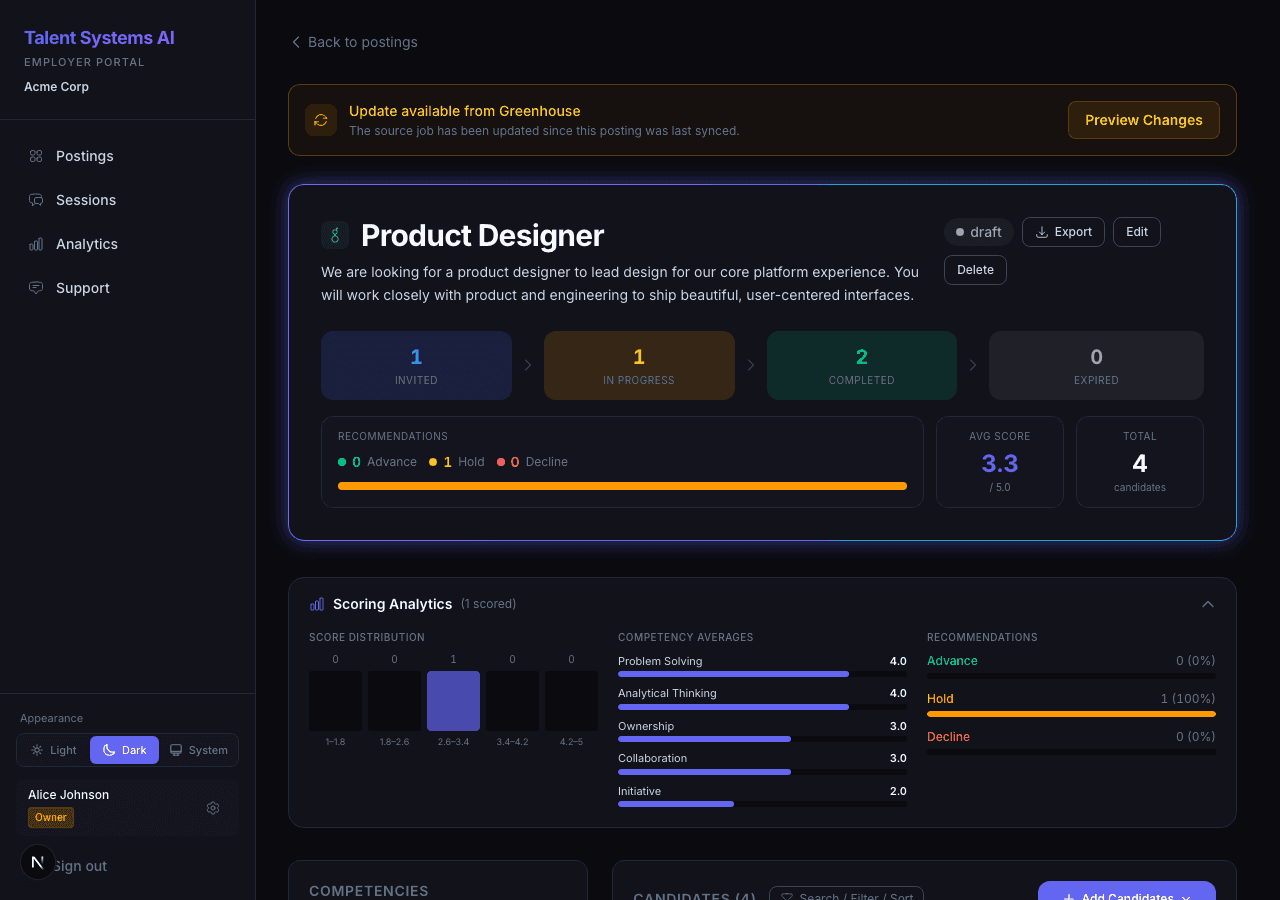
Starting a Comparison
Navigate to a posting detail page where at least two candidates have completed their interviews
Check the boxes next to 2-5 candidates — checkboxes only appear on candidates with completed scorecards
Click Compare (N) in the toolbar at the top of the candidate list
What the Comparison Shows
Summary Row
Each column displays the candidate's overall weighted score as a visual bar alongside their recommendation — Advance, Hold, or Decline. This gives you the headline at a glance before you read into the detail.
Per-Competency Rows
For each competency on the posting, you see:
| Element | What It Shows |
|---|---|
| Score bar | Visual score out of 5 for easy cross-candidate comparison |
| Evidence quote | A direct statement from the transcript that drove the score |
| Star icon | Highlights the highest score per competency across all selected candidates |
The star makes it easy to identify who excelled in each area without doing mental math across columns.
Strengths and Concerns
Below the competency grid, each candidate's top strengths and concerns are summarized in plain language — the qualitative story behind the numbers.
The first two items per candidate are shown by default. When there are more, a Show all N link appears beneath the list — click it to expand that candidate's column without affecting the others. Click Show less to collapse it again. Strengths and Concerns track their expanded state independently per candidate, so you can open just the ones you're comparing closely.
Evidence Quote Tooltip
Each competency row shows a short snippet of the evidence quote that drove the score. Long quotes are clamped to two lines with an ellipsis — hover the quote to see the full text in a tooltip without leaving the comparison view.
Reading the Comparison Effectively
Read the evidence quotes, not just the scores. Two candidates with the same "4" on a competency may have demonstrated it in very different ways — and the nuance matters.
- Focus on the competencies that matter most — use the star highlights to quickly identify who has the strongest profile in your highest-priority areas
- Look for patterns, not just peaks — a candidate who scores 4 across every competency is often a safer choice than one with a 5 in one area and 2s elsewhere
- Compare within a posting — scores are calibrated per-posting, so comparing candidates across different postings is not meaningful
- Selections persist across filters — if you sort or filter the candidate list, your comparison selections are preserved until you close the comparison view
Comparison Limit
You can compare up to 5 candidates in a single view. The limit keeps the side-by-side layout readable and the page snappy — even on a posting with hundreds of scored candidates.
If you share a comparison link with too many IDs in it (an old saved link, a forwarded URL from a teammate, etc.), the comparison view shows a friendly message naming the count it received and the cap, and prompts you to open the posting and pick a smaller set. Nothing is silently truncated, and the comparison API is not called until the link is back under the limit.
The selection counter on the posting page also stops adding candidates once you hit 5 — try to check a 6th and you get a toast explaining the cap with a hint to deselect one first.