Dashboard Overview
Navigate the platform, manage postings, and get oriented with the setup wizard.
After signing in, you land on your Postings page — your central hub for all hiring activity.
Your Postings Page
Each posting card shows:
| Element | What It Tells You |
|---|---|
| Title and status | The job title with an Active or Draft badge |
| Completion ring | Visual indicator of how many candidates have finished interviews |
| Average score | Mean weighted score across completed candidates |
| Interview mode | Voice (mic icon) or Text (chat icon) badge |
| Candidate count | Total candidates invited to this posting |
Use the search bar to find postings by title, status tabs to switch between All, Active, and Draft, and sort options to order by newest, oldest, or candidate count.
First-Time Setup Wizard
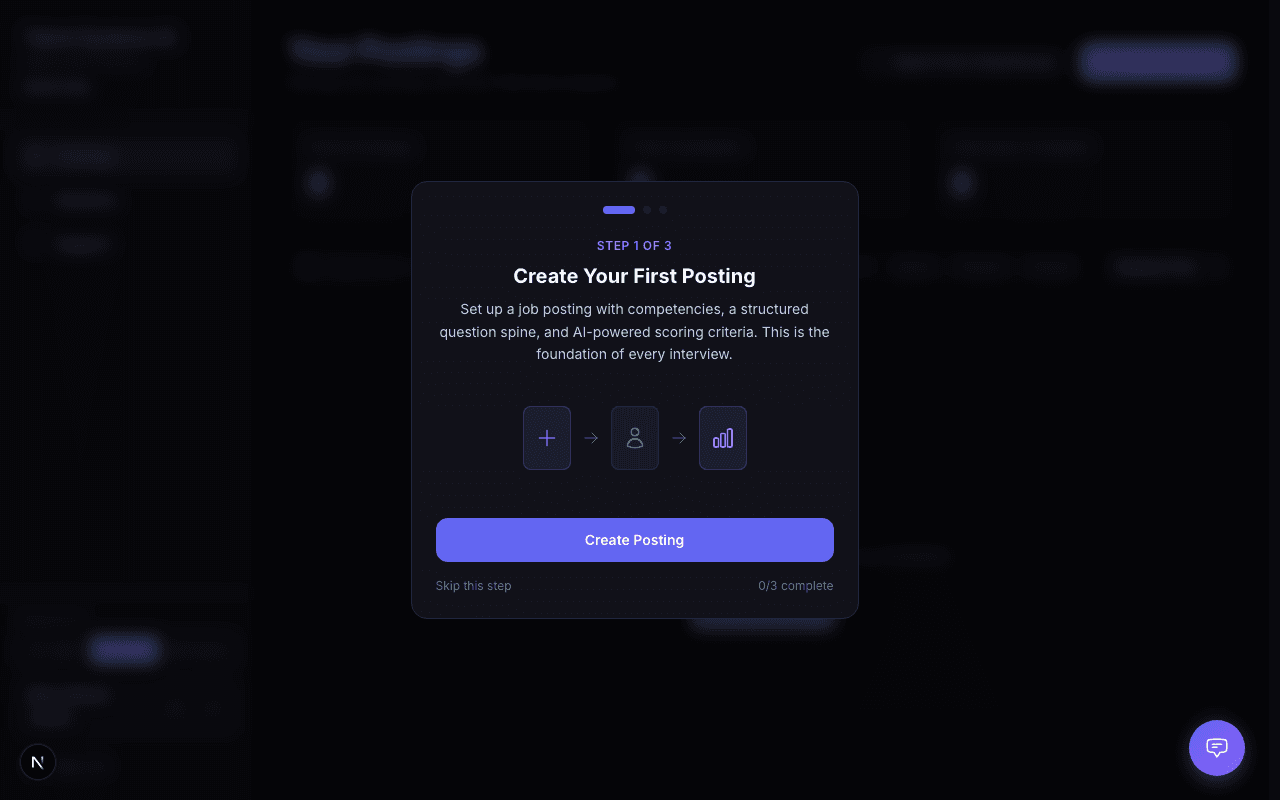
New accounts see a setup wizard that walks you through three steps:
Create your first posting — set up a job with competencies, interview questions, and scoring criteria
Invite your team — add hiring managers and recruiters to collaborate
Configure notifications — choose how you want to be notified about activity
Each step navigates you to the right page. When you return, the wizard picks up where you left off. You can dismiss it at any time and re-launch it from Settings.
Sidebar Navigation
| Section | What It Does |
|---|---|
| Postings | Your job postings and hiring pipeline |
| Sessions | Employee conversation sessions (stay interviews, exit interviews, etc.) |
| Support | Your support tickets and requests |
| Settings | Profile, team, permissions, notifications, integrations, billing, and security |
Sidebar sections may be hidden based on your role, your company's permission settings, or your plan's enabled features. If you don't see a section you expect, ask your account owner.
Notification Bell
The bell icon in the sidebar shows your unread notification count. Click it to see recent updates for interview completions, scorecard results, team changes, and more. Click any notification to navigate directly to the relevant page.
Theme
Use the toggle at the bottom of the sidebar to switch between dark mode, light mode, and system (follows your OS setting).
Support Chat
The chat widget in the bottom-right corner is an AI assistant that answers questions using this documentation. Click it anytime — or ask it to create a support ticket if you need to reach a human.