Inviting Team Members
Invite colleagues to your Talent Systems workspace.
Add team members so they can view postings, manage candidates, and collaborate on hiring.
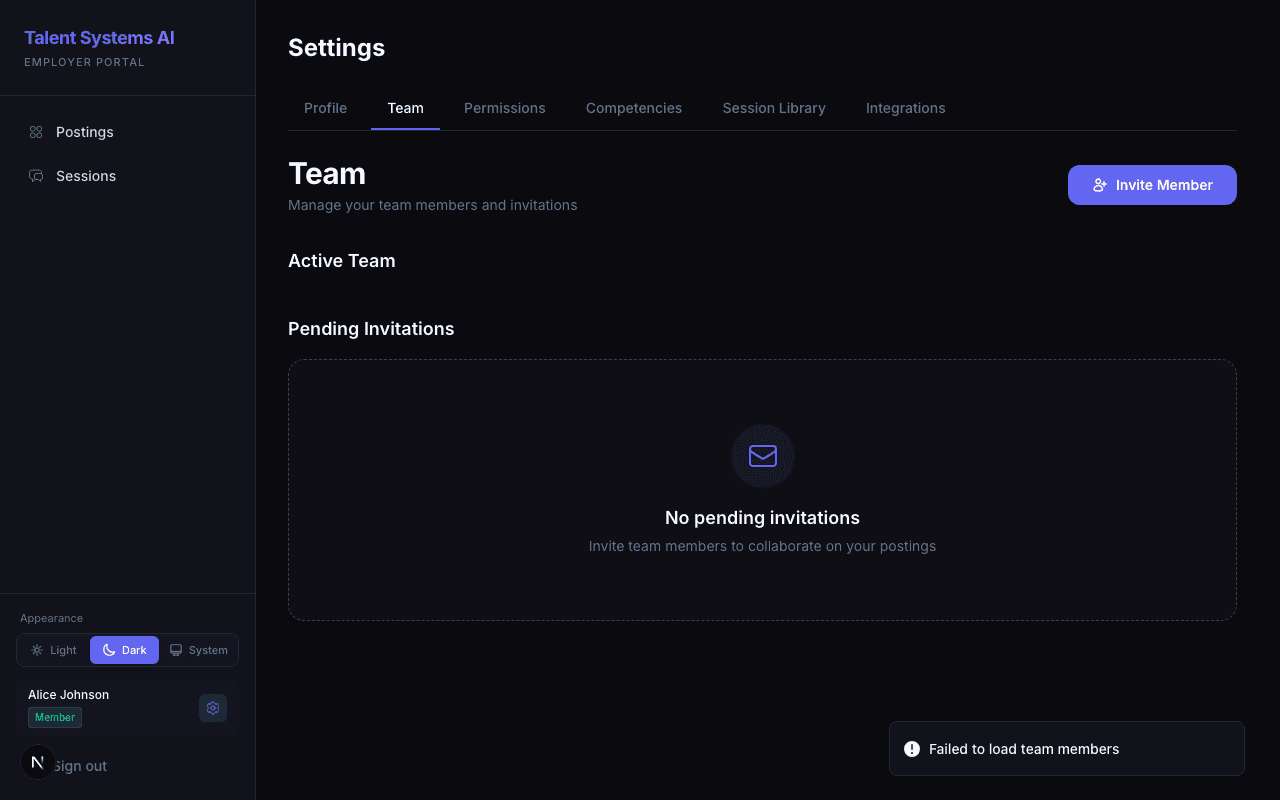
How to Invite
Go to Team from the sidebar
Click Invite Member
Enter their first name, last name, and email address
Select a role — Admin, Member, or Associate
Click Send Invitation
The invitee receives an email with a link to set their password and join your workspace. Invitation links expire after 7 days.
Role Selection
Each role shows a summary of its default permissions at invite time:
| Role | Default Access |
|---|---|
| Admin | Full access to most areas by default |
| Member | Read access to postings and candidates |
| Associate | Minimal read-only access |
These are defaults, not hard limits. You can customize each role's permissions in Settings > Permissions to match exactly what your team needs.
Managing Pending Invitations
In the Pending Invitations section you can:
| Action | What It Does |
|---|---|
| Resend | Re-sends the invitation email and generates a fresh 7-day link |
| Revoke | Cancels the invitation — the link stops working immediately |
Managing Active Members
| Action | Who Can Do It |
|---|---|
| Change role | Account Owner only — click the role badge next to any active member |
| Remove member | Account Owner — soft-deactivates the account; they can no longer sign in but their activity history is preserved |
Transferring Ownership
The Owner can transfer ownership to any active member via the team page. This is immediate and irreversible — the original Owner becomes an Admin.
Ownership transfers cannot be undone without the new owner's cooperation. Make sure you intend to make this change before confirming.